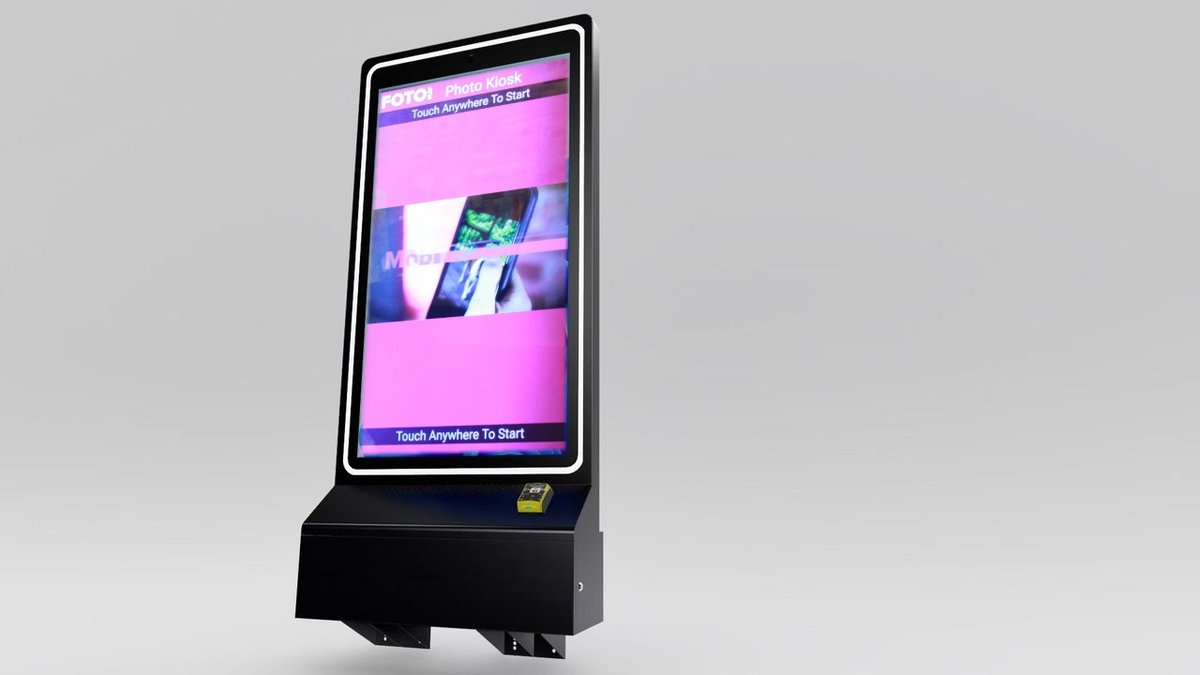
Photo kiosks often frustrate users due to common issues like unresponsive touchscreens, printer jams, software crashes, and payment failures. These problems not only delay transactions but also harm customer satisfaction and business revenue. Here’s what you need to know:
-
Touchscreen Problems: Misaligned screens or poor calibration lead to input errors. Regular cleaning and recalibration can help.
-
Printer Jams: Low-quality paper, dust buildup, or user mishandling cause jams. Monthly cleanings and durable printers minimize disruptions.
-
Software Freezes: Crashes confuse users and expose admin settings. Real-time monitoring and frequent updates improve reliability.
-
Payment Failures: Compatibility issues with payment systems or dependency on internet connections disrupt transactions. Secure hardware and backup 5G connectivity ensure smoother payments.
Solutions: Regular maintenance, remote monitoring, and staff training are key to reducing errors. Systems like Foto ATM offer robust hardware and cloud-based tools to address these challenges, ensuring a better user experience.
Why Users Make Errors at Photo Kiosks
Errors at photo kiosks don’t just happen randomly. They’re often the result of hardware glitches, software issues, or environmental challenges that disrupt the interaction between the user and the machine. To address these problems, it’s important to understand how these factors contribute to user mistakes. Let’s take a closer look at some of the most common culprits.
Touchscreen Calibration Problems
One of the biggest sources of frustration for users is a poorly calibrated touchscreen. When a screen isn’t aligned correctly, taps don’t register where they’re supposed to. For instance, pressing “Print” might accidentally trigger “Cancel”, or worse, the screen might not respond at all. Everyday wear and tear – like fingerprints, smudges, or even spills – can make these problems worse, especially in busy locations.
Regular maintenance can make a world of difference. Weekly recalibration and daily cleaning with a microfiber cloth can keep touchscreens responsive and accurate. On top of that, preventing hardware issues like printer jams is equally important for a smooth experience.
Printer Jams and Failed Print Jobs
Printer jams are a nightmare for both users and operators. They not only disrupt the process but can also lead to costly repairs. Frank Ouyang, Chief Manager at Panda Paper Roll Company, explains:
“Paper jams can be tremendously frustrating for both users and operators, and the cost of repair can be quite excessive.”
Sometimes, jams happen because users pull the paper mid-print. Adding features like a looping presenter or a drop chute can prevent this. Other causes include using low-quality paper that tears easily or dust building up in the printer’s gears and rollers.
To avoid these issues, monthly cleanings with compressed air can remove dust and paper particles from the machine’s internal components. This also helps prevent overheating. Investing in commercial-grade printers, designed for heavy use, can further reduce downtime and maintenance needs.
Software Crashes and Freezes
Software instability is another major pain point. When the screen freezes or crashes during a transaction, it can leave users feeling frustrated and confused. These interruptions often lead to delays, failed payments, and incomplete transactions, which can harm a brand’s reputation.
In some cases, unstable software can cause the kiosk to exit its locked “kiosk mode”, exposing admin settings and adding to the confusion. Even cloud-based systems, which allow for remote management, come with risks. Connectivity issues or latency during critical moments can make the system seem unresponsive.
| Software Issue | Impact on User | Potential Cause |
| Frozen Screen | Unable to complete transaction | System overload or unresponsive touch input |
| App Crashing | Confusion; exposure of admin settings | Unstable updates or memory leaks |
| Connectivity Latency | Failed or slow transactions | Cloud communication issues |
Using real-time monitoring tools to track system performance can help identify problems before users encounter them. Regular updates – monthly or quarterly – can address bugs, improve security, and fix payment-related issues.
Camera Connection and Focus Failures
For photo kiosks, camera issues can completely derail the user experience. Problems like blurry focus, connectivity failures, or driver conflicts can prevent users from taking clear photos – or any photo at all. Even physical issues, like loose cables caused by vibrations or accidental bumps, can disrupt the camera’s functionality.
Opting for high-resolution cameras with fewer connection points can help minimize these risks. Weekly maintenance checks, including cable inspections, can catch loose connections early, ensuring the camera stays operational and users stay happy.
Payment and USB Device Errors
Payment failures and problems with USB devices are another source of frustration. These issues often arise from compatibility problems, particularly with operating systems. Many payment devices are designed primarily for Windows, which can create challenges for kiosks running on Android or iOS. Rob Chilcoat from Unattended Card Payments explains:
“When developing for Android or iOS the selection [of payment solutions] becomes much more limited, and their capabilities less robust.”
Windows-based systems have the advantage of processing transactions locally, even without an internet connection. In contrast, Android and iOS systems rely heavily on cloud connectivity, which means a dropped internet connection can halt payments entirely.
| Feature | Windows-Based Payment | Android/iOS-Based Payment |
| Communication | Local/Offline capability | Primarily Cloud-based |
| Device Support | Broad range of APIs/Drivers | Limited; often requires SDKs |
| Reliability | High (works without internet) | Moderate (dependent on connectivity) |
Security is another concern. Exposed USB ports can make kiosks vulnerable to tampering or malware. Andrew Savala, CEO of RedSwimmer Inc., warns:
“Exposed USB ports are a hacker’s wet dream because they make it easy to install malware.”
Adding protective enclosures around USB ports can prevent unauthorized access. Another common issue is the lack of feedback during payment processing. As Savala points out:
“If the UI completely freezes, the customer will worry that the machine locked up.”
To ease user anxiety, incorporating animations or progress indicators during transactions can reassure customers that their payment is being processed. This simple addition can reduce repeated attempts and abandoned transactions, improving the overall experience.
How Foto ATM Kiosks Reduce User Errors
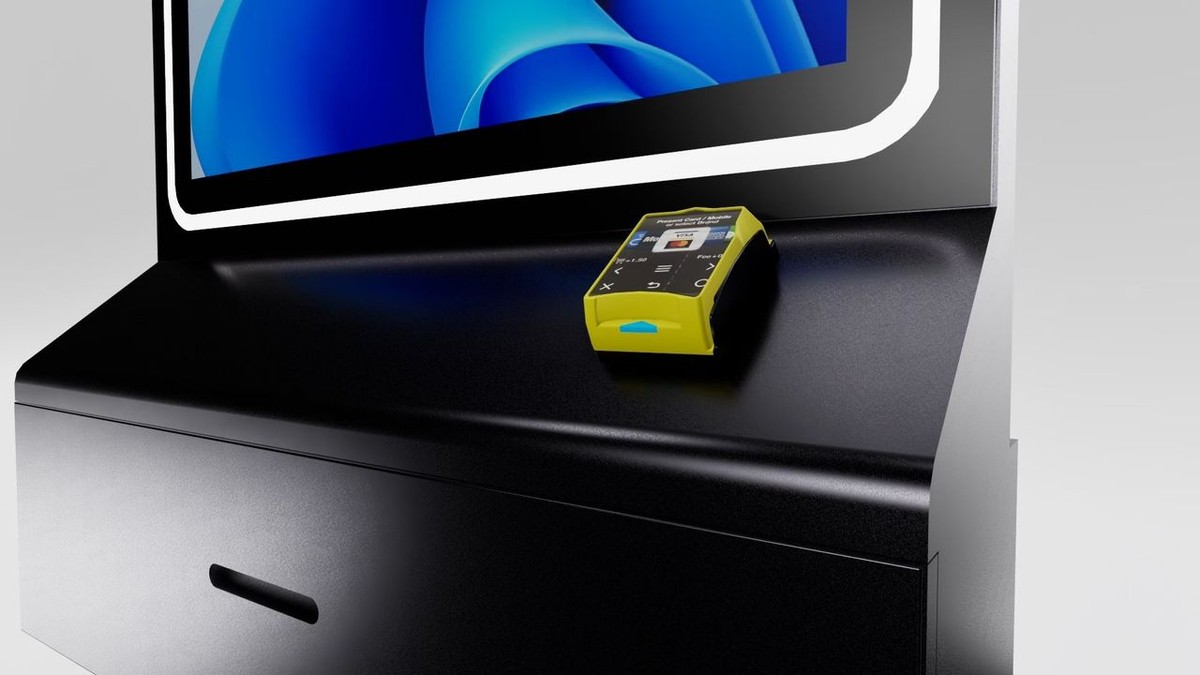
Foto ATM tackles common issues with a mix of durable hardware, cloud-based tools, and user-friendly design. Every element is built to minimize mistakes and ensure smooth operation.
High-Quality Touchscreens with Accurate Calibration
Foto ATM kiosks run on Windows and use “Tablet Settings” and “HID-compliant touch screen” drivers to keep touch accuracy on point. Operators can fine-tune these settings directly through the Windows Control Panel. Plus, the cloud-based FotoBooth software lets owners tweak configurations remotely via an online dashboard. If needed, the “Print From Phone” feature serves as a backup input option. Jim Kershbaumer, Owner of Cash Cow Vending, shares:
“As a vendor, it’s important to have real time updates on how my products are performing, and with Foto ATM’s FotoBooth app I’m able to view analytics and update my kiosks remotely from my phone.”
Dependable Printing with Remote Monitoring
These kiosks pair with professional-grade printers like the Primera IP60 and DNP RX1HS, ensuring reliable output. Through the cloud-based dashboard, operators can monitor printer performance in real time, spotting issues like low paper or jams before they disrupt users. Instant alerts notify staff of any problems, enabling quick remote fixes. This proactive approach complements the sturdy hardware, keeping operations smooth.
Cloud-Based Software with Regular Updates
FotoBooth software benefits from automated cloud updates that fix bugs, improve responsiveness, and enhance security. These updates happen remotely, eliminating the need for on-site visits. Operators can also restart or reset systems remotely to resolve issues like frozen screens or stuck print queues. Neil Levin, General Manager Australia & NZ at Hire Intelligence International, notes:
“The team at Foto ATM are constantly innovating, ensuring that the FotoBooth software continues to improve & evolve thereby providing us with more & more USP’s with which to sell and rent the devices.”
Built-In High-Resolution Cameras
High-resolution cameras in Foto ATM kiosks offer steady focus and clear images. Interactive previews and features like full-screen displays and countdowns guide users through the photo-taking process, significantly reducing errors.
Secure Payment Systems and Device Support
Foto ATM kiosks come equipped with secure payment options, including Nayax EMV readers, Pyramid bill acceptors, and arcade pulse readers. They support a variety of payment methods like Amex, MasterCard, Visa, Apple Pay, Google Pay, and cash. To prevent transaction failures caused by network issues, the kiosks can switch to 5G modems as a backup for standard Wi-Fi or wired connections. The “Print From Phone” feature also reduces dependency on physical USB ports, lowering potential risks. Secure hardware combined with backup 5G connectivity ensures transactions run without interruptions.
| Feature | Supported Devices/Methods |
| EMV Card Readers | Nayax |
| Cash Acceptance | Pyramid DBA, Pulse Readers |
| Mobile Payments | Apple Pay, Google Pay |
| Printers | Primera IP60, DNP RX1HS |
sbb-itb-3201140
How to Prevent User Errors Before They Happen
Regular Maintenance and Pre-Event Testing
Keeping kiosks running smoothly starts with consistent upkeep and pre-event checks. Each day, clean touchscreens with a microfiber cloth and a nonabrasive cleaner, ensure printer paper is stocked, and confirm the payment system is operational before busy periods. A weekly reboot can help refresh performance and clear out the cache, while inspecting power and network cables for loose connections can prevent unexpected shutdowns. If users report unresponsive touchscreens, recalibration may be necessary.
For a deeper clean, consider monthly maintenance. Use compressed air to clear dust from internal components, keyboards, and printers. Run diagnostics and test peripherals like card readers and scanners to ensure they’re functioning properly. Joseph Kloss, Spokesperson at Pitney Bowes, emphasizes:
“Don’t use the kiosk as a temporary storage area for anything not related to the operation of the kiosk.”
Studies reveal that around 18% of kiosks in retail settings are not functioning properly at any given time. Routine maintenance can significantly reduce this figure. Always stick to manufacturer-approved paper and ink to avoid mechanical issues or poor print quality. These small but crucial tasks, paired with remote management tools, help ensure kiosks stay reliable.
Remote Management and Monitoring Tools
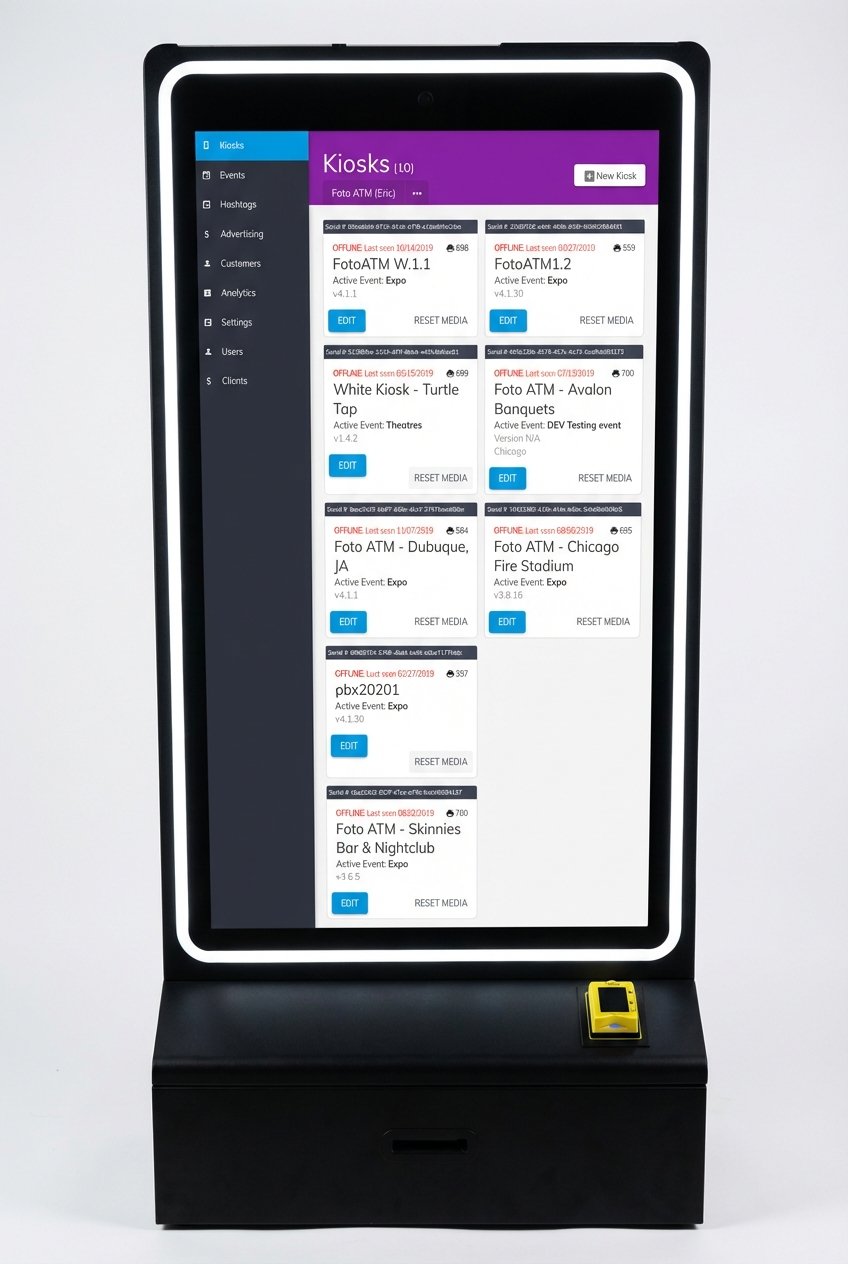
Remote monitoring tools, when paired with regular maintenance, can catch and address problems before they impact users. For instance, Foto ATM’s cloud-based dashboard allows operators to oversee kiosk performance from anywhere. This system monitors CPU usage, memory load, and connection stability, and it sends automated alerts as soon as a kiosk goes offline or encounters an issue.
Bob Gatta, CEO of Data Display Systems LLC, highlights the importance of this feature:
“One of the most important features is simply knowing the moment a kiosk is offline, which enables someone to proactively contact the store location to troubleshoot a problem.”
Operators can also use these dashboards to review error logs and remotely reboot systems, often resolving frozen states without requiring a technician. Remote management tools can cut security-related downtime by as much as 30%. Additionally, these systems monitor printer supplies, sending alerts when paper is running low or jams occur, ensuring timely interventions.
Staff Training for Basic Troubleshooting
Even with thorough maintenance and advanced monitoring, quick on-site troubleshooting is sometimes unavoidable. Staff should be trained to operate kiosks, resolve common issues, and know when to escalate problems. They should also understand how to safely restart kiosks, clear paper jams, and reload paper rolls properly.
Aila Staff underscores this point:
“Train staff members on how to use the kiosks, how to troubleshoot common issues, and who to call for assistance if a kiosk is having technical problems.”
Provide tools like compressed air for weekly cleaning of internal components such as bill acceptors and printer gears. Document all maintenance and troubleshooting procedures in a written guide or digital knowledge base for easy access during shifts. During the initial rollout phase, consider stationing a trained staff member nearby to assist users and quickly identify any recurring technical issues. This hands-on approach can make a big difference in ensuring a smooth user experience.
Conclusion
Mistakes at photo kiosks don’t have to be the norm – they can be avoided with the right mix of reliable hardware, intuitive software, and regular maintenance. These common hiccups not only frustrate users but can also impact your bottom line.
To tackle these challenges, a comprehensive solution is essential. Foto ATM’s cloud-based FotoBooth software addresses these problems head-on with features like remote management, real-time monitoring, and instant troubleshooting. The system integrates dependable payment hardware, high-resolution cameras, and professional-grade printers to minimize hardware-related issues. Plus, tools like AI Green Screen technology help users avoid backdrop positioning mistakes, and live analytics allow you to spot and resolve bottlenecks before they escalate.
But it’s not just about the equipment – proactive support plays a critical role. Regular maintenance, pre-event testing, and thorough staff training ensure smooth day-to-day operations. Remote monitoring with instant alerts means you’re quickly notified if a kiosk goes offline. As Bob Gatta, CEO of Data Display Systems LLC, explains:
“One of the most important features is simply knowing the moment a kiosk is offline, which enables someone to proactively contact the store location to troubleshoot a problem”.
Ultimately, delivering a smooth kiosk experience comes down to careful preparation. By combining durable hardware, responsive software, and consistent maintenance, you can keep malfunctions to a minimum. A hassle-free photo kiosk isn’t just a convenience – it’s a valuable advantage that keeps customers coming back for more.
FAQs
How does regular maintenance help reduce user errors in photo kiosks?
Regular upkeep is key to ensuring photo kiosks operate smoothly and minimize user errors. For instance, cleaning the touchscreen and other components keeps the screen clear and responsive, reducing the chance of mistakes caused by dirt or an unresponsive surface. Clearing away dust and debris from the kiosk and its surroundings also helps prevent hardware issues that might confuse users.
Equally important is staying on top of software updates and hardware checks. These tasks allow you to catch and address potential problems – like software glitches or worn-out parts such as printers or card readers – before they impact the user experience. Sticking to recommended cleaning practices and using approved supplies ensures the kiosk runs efficiently, offering users a hassle-free and reliable experience.
What causes printer jams in photo kiosks, and how can they be prevented?
Printer jams in photo kiosks usually happen due to paper misalignment, incorrectly loaded paper or media, or mechanical problems with parts like the printer head, motor, or sensors. Over time, dust and debris inside the printer can also cause jams.
To reduce the chances of these problems, make sure the paper is loaded properly, stick to the recommended paper type and size, and clean the printer regularly to clear out dust and debris. Performing routine maintenance and inspections can help catch and fix issues before they escalate into jams.
How do cloud-based tools improve the performance and reliability of photo kiosks?
Cloud-based tools boost the efficiency and dependability of photo kiosks by offering remote monitoring, instant updates, and data-driven troubleshooting. With these tools, operators can oversee kiosks from virtually anywhere, addressing issues like software bugs or outdated configurations without needing to visit the location in person.
Additionally, these tools deliver real-time analytics, which help identify usability problems or recurring errors. This data allows businesses to make focused adjustments to improve the overall user experience, reducing errors and ensuring smoother operations. In short, cloud technology simplifies maintenance, cuts down on downtime, and keeps kiosks running seamlessly, leading to better reliability and happier users.
Ready to add passive revenue to your venue? Take the 60-second kiosk quiz to find your perfect match, or compare all models side by side.